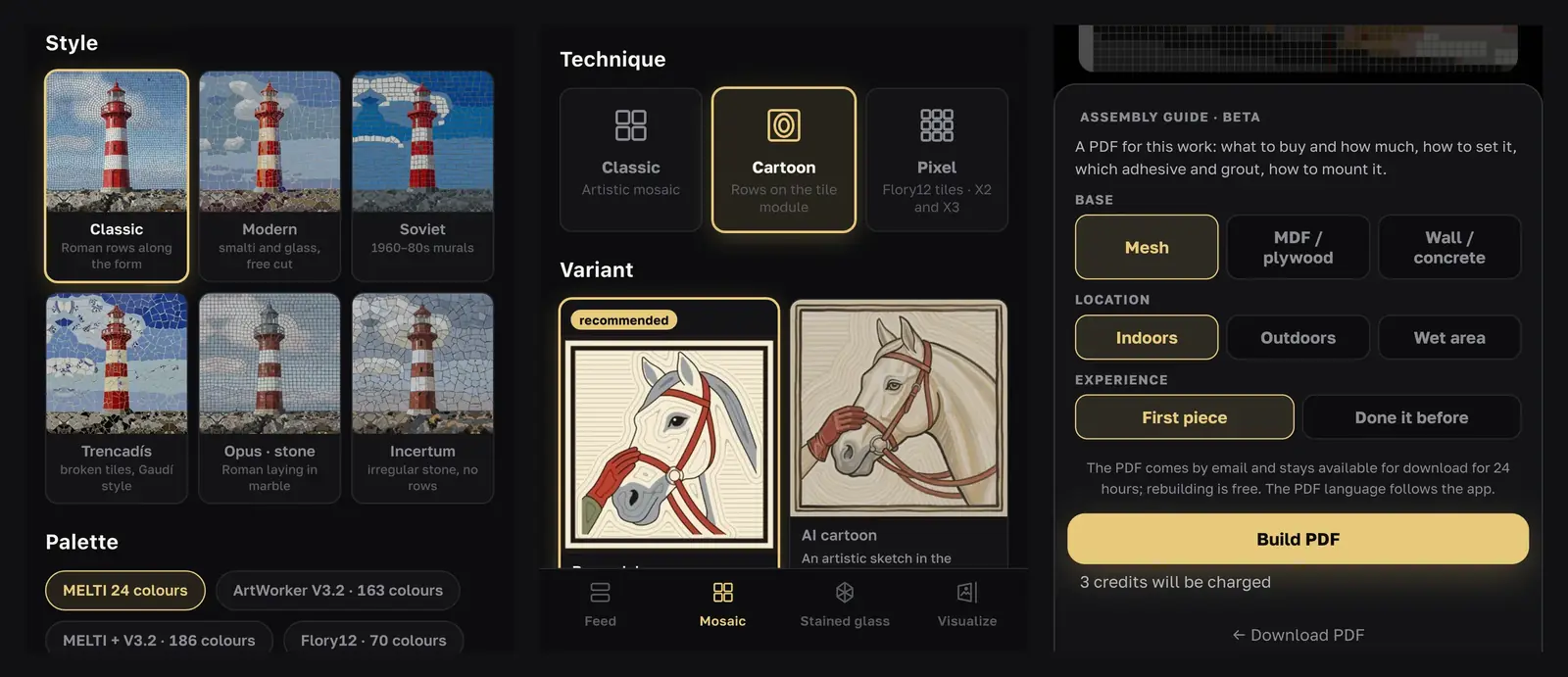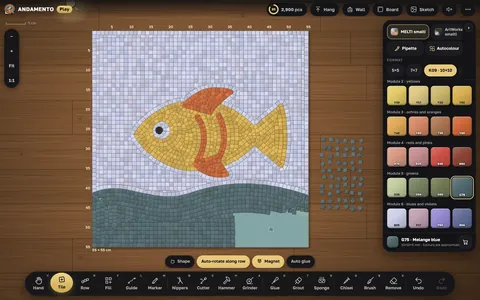
Andamento Play is a mosaic workshop on your screen. The tiles are at real size: you nip them, set them in glue, grout the joints and wash the face with a sponge, in the same order as on a real worktable. It was made by the ArtWorker team as a companion to Andamento, our mosaic design app. Play is free and opens in the browser on a tablet, phone or computer, with no sign-up needed to start.
This page explains what the simulator trains, what it can't, and how to use it alongside our courses.
What Andamento Play is
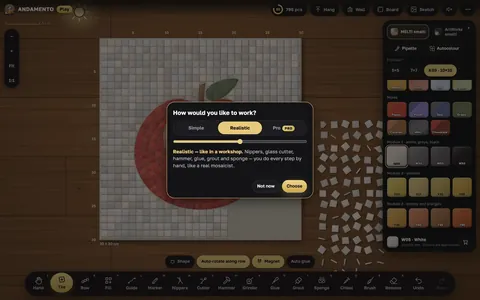
When you first open the table, Play asks how you want to work:
- Simple is closest to a game. You draw rows and fill areas, while gluing, trimming and washing happen by themselves. It is the quickest way to try mosaic.
- Realistic works like a workshop. Nippers, glass cutter, hammer, adhesive, grout and sponge: every step is done by hand.
- Pro comes with the Andamento Pro subscription. It splits a sketch into areas, builds the work from layers and exports a cartoon for a real mosaic.
The palettes are real materials: smalti, natural stone, glass tile, stained glass with the texture of real sheets, and ceramic for trencadís. Tile formats run from 5 × 5 mm (3/16 in) up to a full sheet of glass, and the 1:1 button shows the tiles at their real size, so a 10 × 10 mm (3/8 in) tile on a 30 × 30 cm (12 × 12 in) board looks just as it would on your table.
Play remembers your work automatically. Add it to your home screen and it opens like an app and works offline. The interface is in English and Russian.
What it trains
Leading the rows: andamento
The flow of the rows across a mosaic is called andamento, and it is the hardest thing to learn from pictures. In Play, the Row tool lays tiles side by side along a line you draw. On sharp curves it trims the tiles into trapezoids and triangles by itself, as a mosaicist does, and it can taper a row toward its ends.
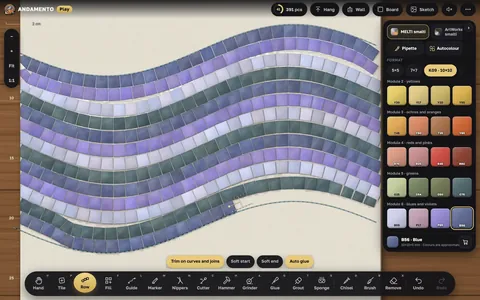
Work the way mosaicists do: one row along the outline of the figure first, then the background. The Fill tool fills a marked area with a pattern: straight rows, brick bond, andamento, circles, fan, scales or trencadís. Try the same subject with different backgrounds and you quickly see how the rows change the mood of a piece. The patterns themselves are explained in our guide to mosaic setting techniques.
Cutting
In realistic mode you fit tiles by hand. The nippers split a tile along your line into halves, quarters, diagonals or a wedge, with a living edge and shards that stay on the table for you to use. The glass cutter cuts tiles and stained glass along a smooth line or a circle, the hammer breaks a tile or a slab into random shards for trencadís, and the grinder trims the board together with the mosaic.
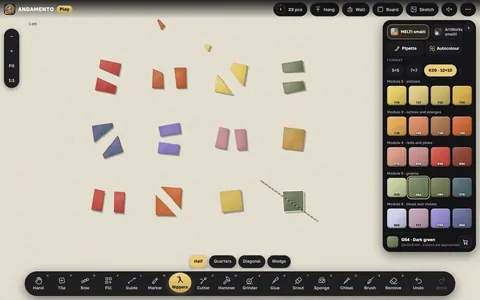
It is a good way to learn which shapes a row needs before you cut real material. When you move to real smalti, our lesson on how to cut smalti covers the grip and the technique.
Color
Every color in the palette is a real material. Mixes combine close shades into one living surface, as mosaicists do. The Pipette takes the nearest palette color from your sketch or a tile, and Autocolor picks it from the sketch for you.
The order of work
A finished mosaic means tiles in adhesive, grouted joints and a clean face, and Play keeps that order. Spread white or gray adhesive with the trowel: it covers the sketch, as in real work, and Play offers to lay mesh under it. A tile in adhesive sets and no longer moves; only the chisel takes it off, and it leaves an adhesive mark behind. Then sweep the rubber float to fill the joints, choosing from 66 grout colors, and wash the haze off with the sponge. The real-world version is in how to grout a mosaic.
What it can't teach
A simulator can't give you the feel of the nippers in your hand, the way a real piece of smalti sometimes breaks where you didn't expect, or how long your adhesive stays workable. Use Play to understand rows, shapes and the order of work and to plan a piece. The hand skills still come from real material, which is what our courses are for.
Who it's for
- Beginners who want to try mosaic before buying tools and materials. Start with the five-minute lesson on the start screen, then the first mosaic lesson: a leaf in the Roman technique, from the outline to the background.
- Our students, to rehearse the rows of a lesson or lay out their own cartoon before setting it.
- Teachers and workshops, to show on any screen how smalti is cut, rows are laid and joints are grouted.
- Mosaicists, to plan a work: the sketch, tiles at real size, the materials.
Lay out your own cartoon in Play
- Make the design. Draw a cartoon by hand (our free lesson shows how to draw a mosaic cartoon) and photograph it, or create one in Andamento.
- Load it. In Play, choose New mosaic → Load my own sketch, and set its width in centimeters. The board takes the size of the sketch.
- Check the scale. Press 1:1 to see how much detail your tile size can really hold.
- Lay it out. Outline the main shapes with rows, then fill the background.
- Count the material. Open Materials: Play shows the tiles laid, the board coverage, the weight of each color and how many packs to buy, with a cutting allowance.
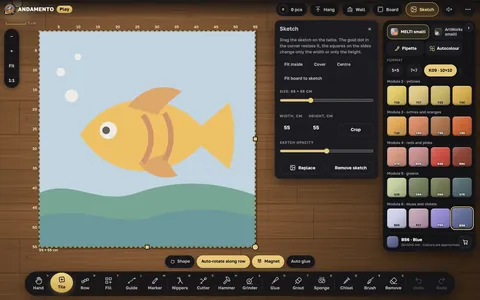
With Pro, Pro mode goes further: the sketch splits into areas, the work is built from layers (picture, lettering, shapes, frame, background), and you can export the cartoon as a PDF, SVG or PNG on A4 or A3 sheets at real size, mirrored for the indirect method if you need it. One Andamento account and one Pro subscription cover both the design app and Play.
Your wall and the gallery
When a mosaic is finished, Hang takes it off the table and puts it on your own wall, where you can pick the wall color and take the piece down later to rework it. Hanging needs a sign-in with an Andamento account. Public walls are visible to everyone and go into the shared gallery; a private wall comes with Pro.
When you are ready for real tesserae, The Basics of Mosaic teaches the materials, cutting and three setting techniques from the start.
Questions, answered
Is Andamento Play free?
Yes. The simple and realistic modes, the lessons, your wall and the shared gallery are free, in the browser, and the sandbox needs no sign-up. Pro mode and a private wall come with the Andamento Pro subscription.
Does it work on an iPad or a phone?
It works in the browser on an iPad, a phone or a computer, and it is most comfortable on a tablet or a computer, where the table is bigger. On an iPad, Apple Pencil works the tool while your fingers move the table. Add it to your home screen and it opens like an app, even offline.
Can I lay out my own design in it?
Yes. Load a picture and set its width in centimeters; the board takes the size of the sketch and the tiles go on top at true scale. You can make the design in Andamento or draw it by hand.
Can a simulator replace practice with real materials?
No. It helps you understand rows, cutting shapes and the order of work, and plan a piece. The feel of the nippers, the way real smalti breaks and the timing of the adhesive only come with real material.
Sources
- Andamento Play (play.andamento.app), version 1.0, checked November 21, 2026: how to play, what is inside, questions and answers
- Andamento Play guides (andamento.pro), checked November 21, 2026: modes, rows, fill, cutting, glue and grout, color, materials, Pro mode, wall, devices